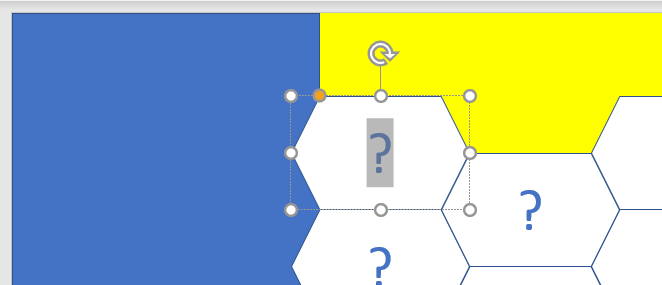
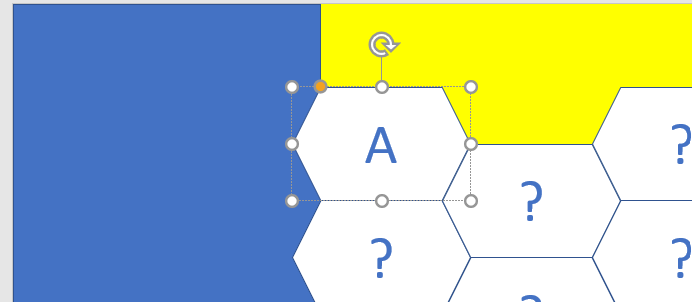
Watch a video of how to create a Blockbusters style quiz
Or follow the text guide (this text guide is quite lengthy as it details every action step by step)
1. Open your PowerPoint application and create a new blank presentation. Delete the title and subtitle boxes to leave a completely blank slide.
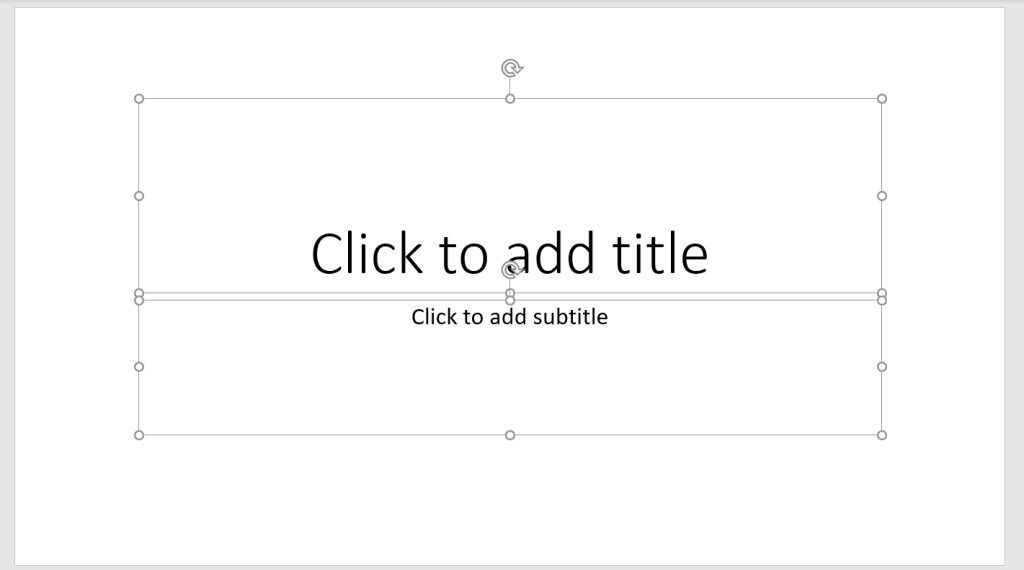
2. Set the slide background fill to Yellow.
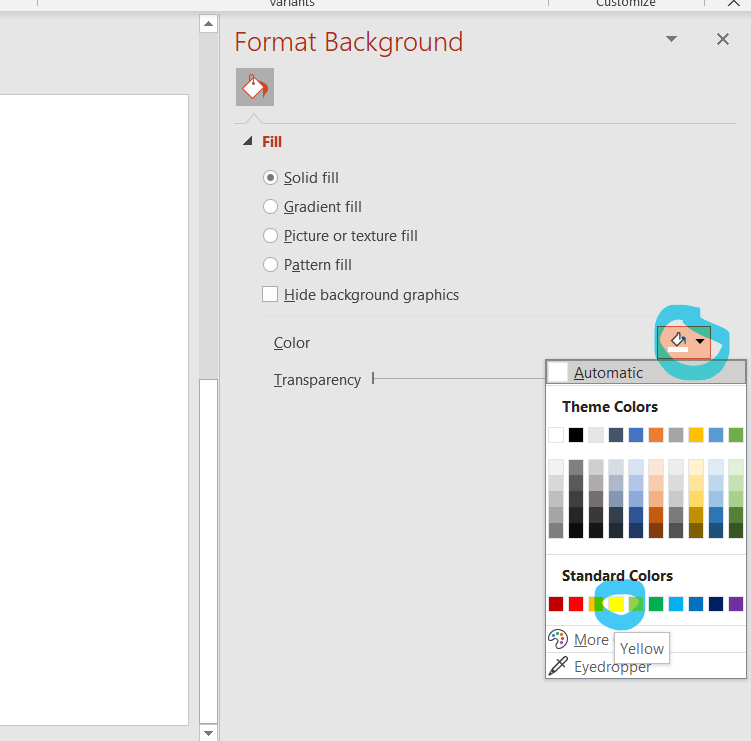
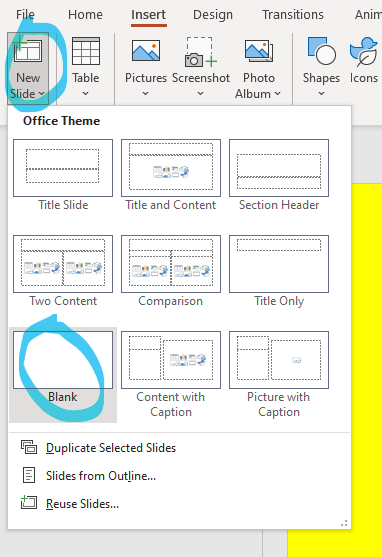
3. Create a new blank slide.
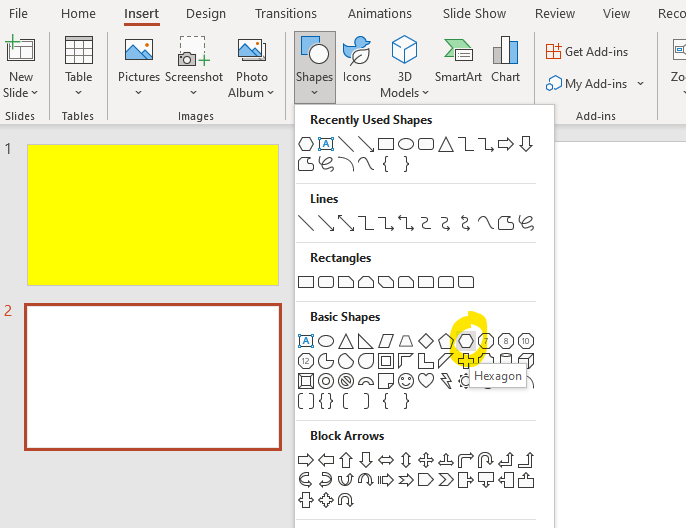
4. Select Insert > Shapes and select the Hexagon option.
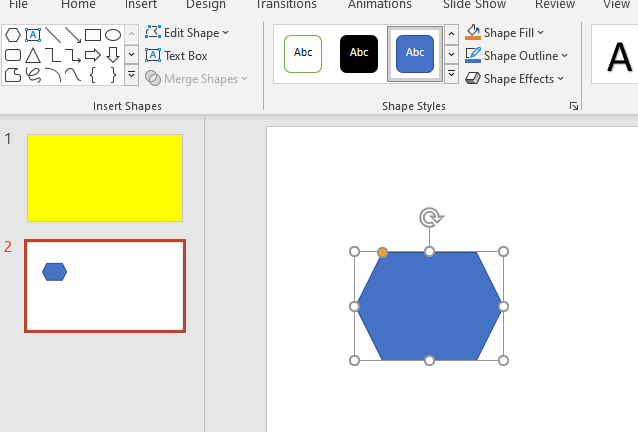
5. Create a hexagon.
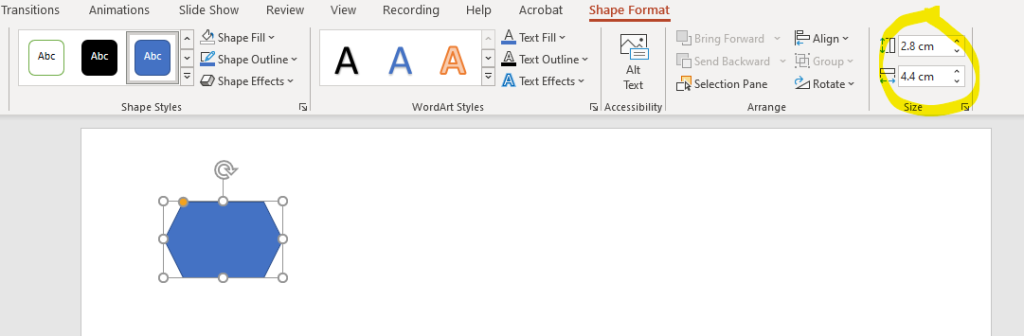
6. Set the size at: Height 2.8cm; Width 4.4cm
7.Set the shape fill to White.

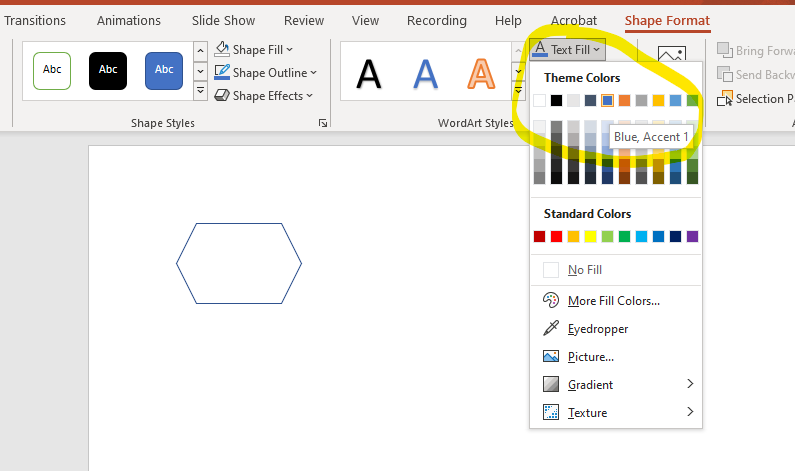
8. Set the Text fill to Blue (Accent 1)
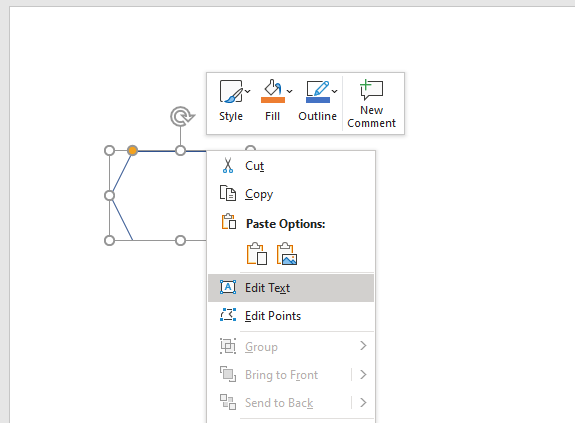
9. Right Click on the Hexagon and select the Edit text option.
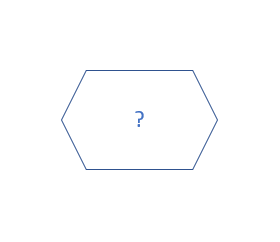
10. Add a question mark into the hexagon (you will be able to change this to a different letter later).
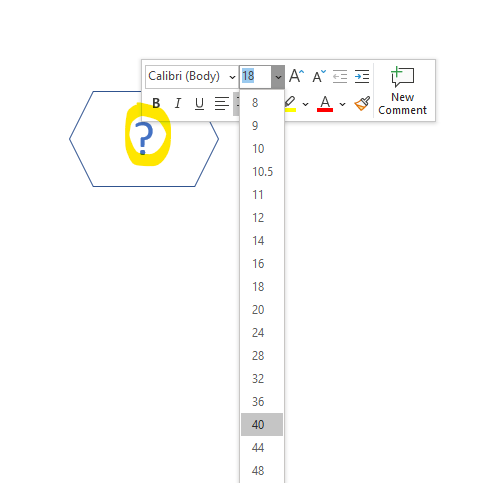
11. Resize the font to 40.
Adding colour change animations to the hexagon
1. Select the hexagon and click Animations.
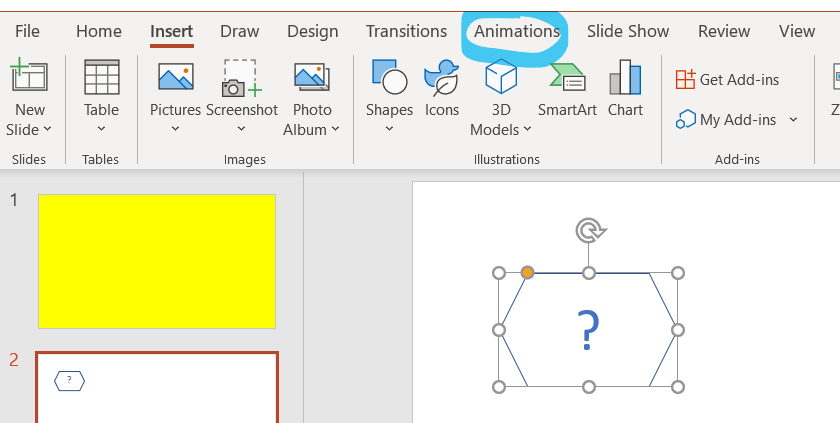
2. Expand the animation panel.

3. From the emphasis options select Fill Color.
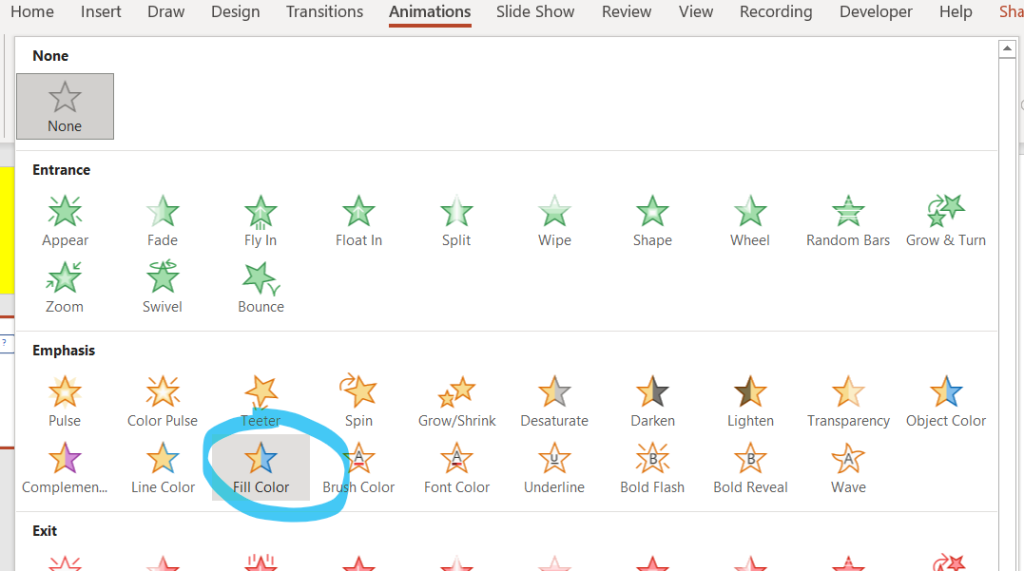
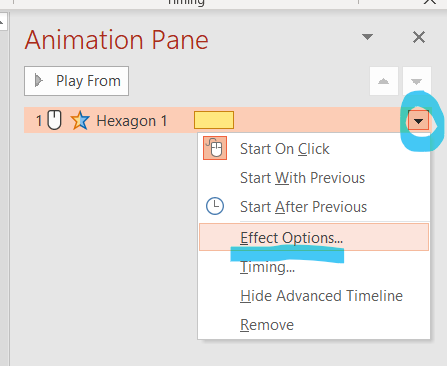
4. Open the animation pane.

5. From the hexagon options menu select Effect Options.
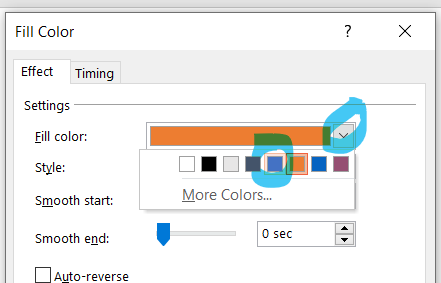
6. Set the fill color to Blue (Accent 1).
7. Click the Timing tab.
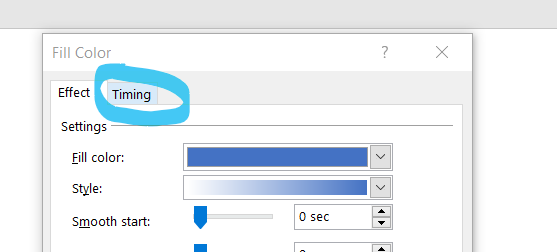
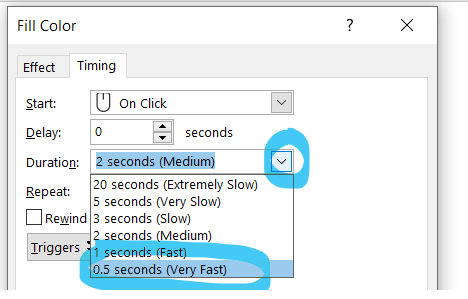
8. Set the duration to very fast.
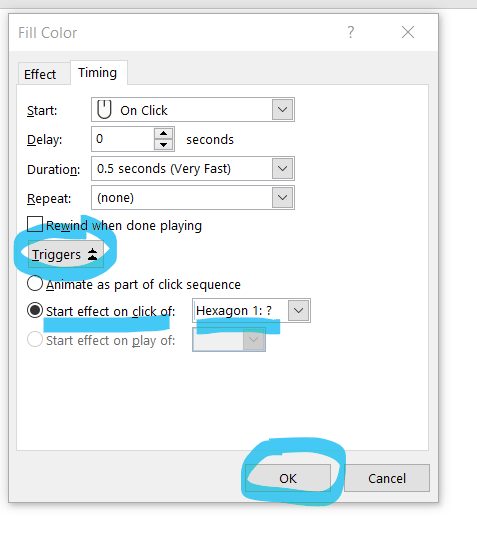
9. Set the trigger to Start effect on click of Hexagon; and click OK.
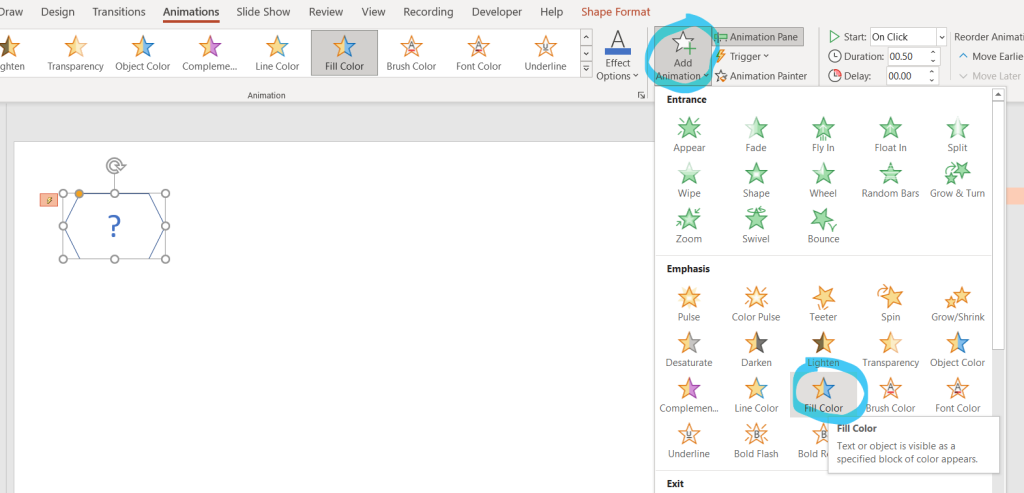
10. Add a yellow animation – Select the hexagon; click Add animation; and click Fill color.
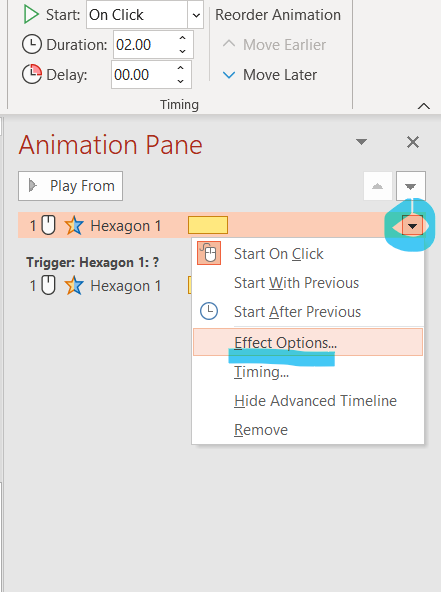
11. In the animation pane select Effect options.
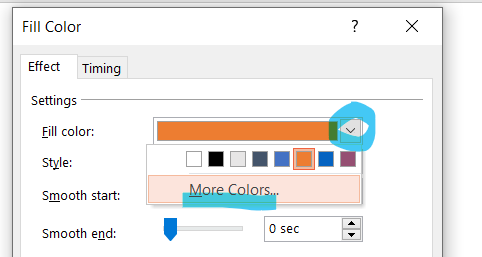
12. Select More colors.
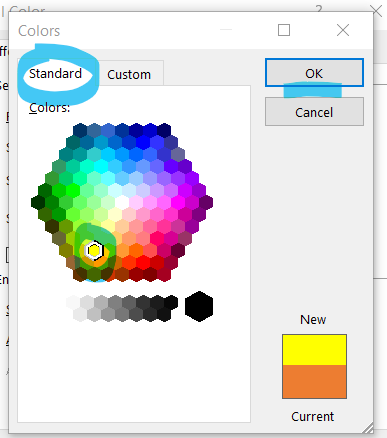
13. From the Standard tab select Yellow and click OK.
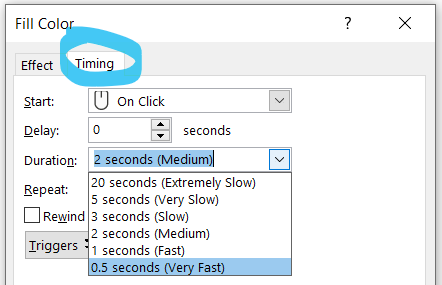
14. From the timing tab, set Very fast.
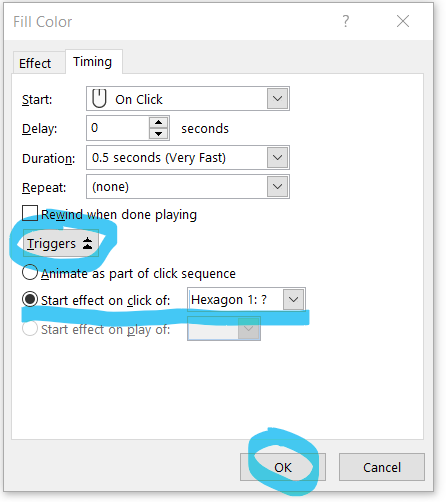
15. Click Triggers and Set to Start effect on click of hexagon. Click OK.
16. Add colour animation to the text – Select the question mark text item.
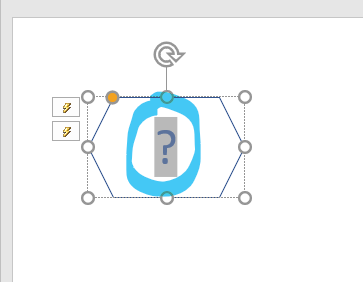
17. Click Add animation; and select Font color.
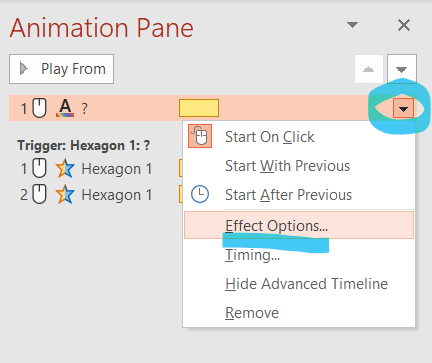
18. In the animation pane select Effect options.
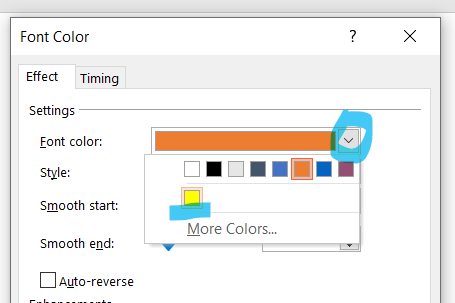
19. Set the Font color to Yellow.
20. Set timing to very fast.
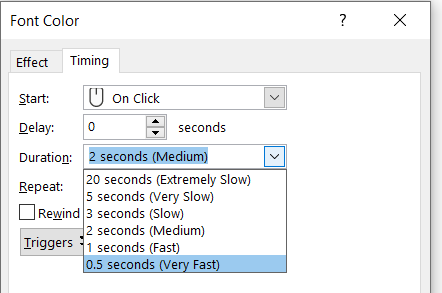
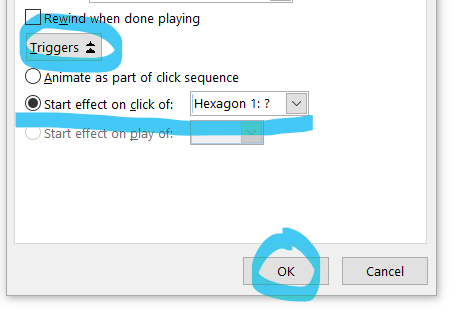
21. Set the Trigger to Start effect on click of hexagon; and click OK.
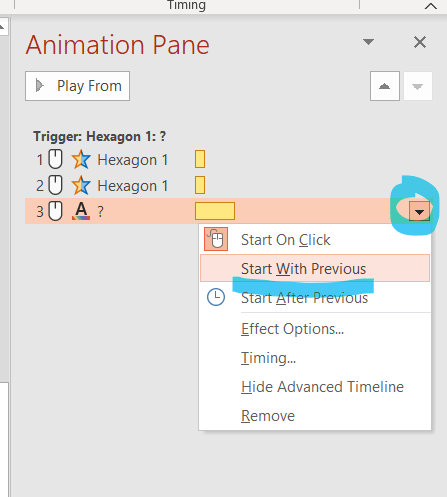
22. In the Animation pane set the text item to Start with Previous (don’t miss this step).
23. Reset the hexagon to its original state – Select the hexagon.
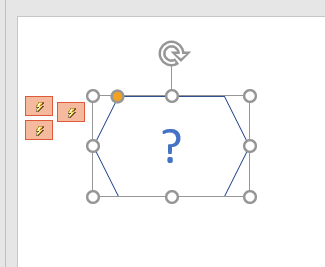
24. Click Add animation and Fill color.
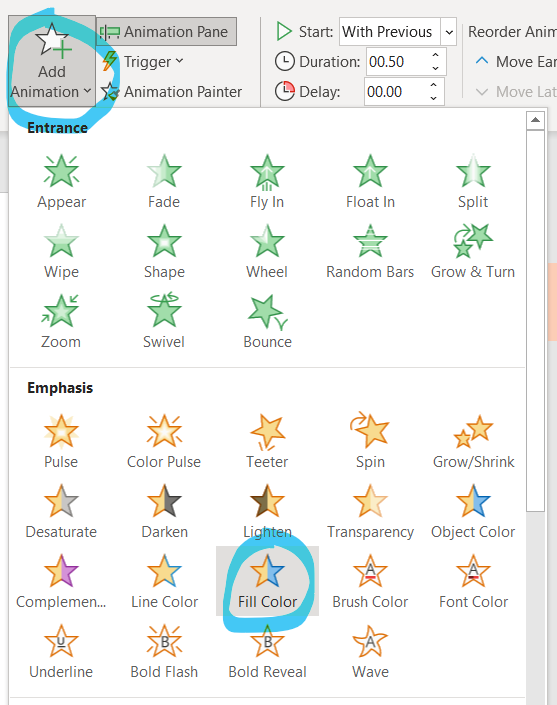
25. In the Animation pane select Effect options.
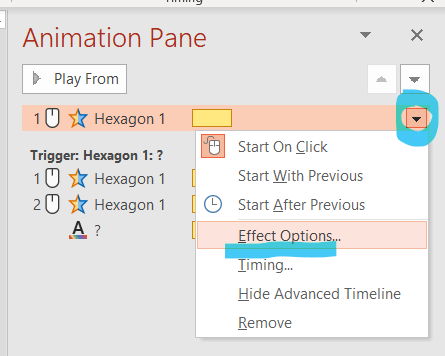
26. Set the Fill color to white.
27. Set timing to very fast.
28. Set the Trigger to Start effect on click of hexagon; and click OK.
29. Reset the text to its original state – Select the question mark text item.
30. Click Add animation; and Font color.
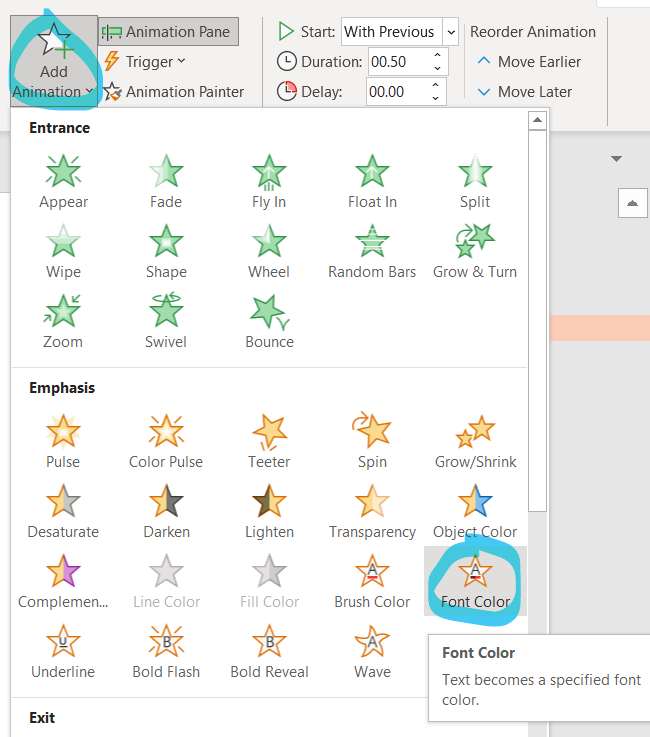
31. In the Animation pane select Effect options.
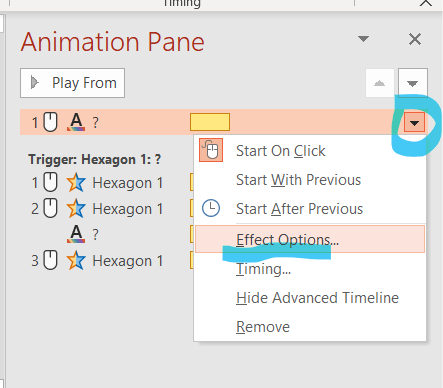
32. Set the Font color to Blue (Accent 1).
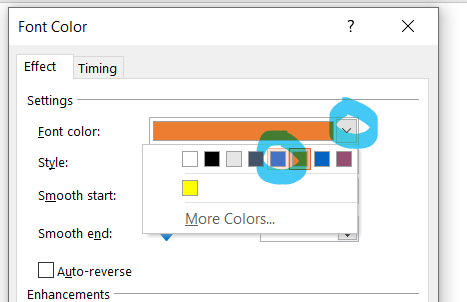
33.Set timing to Very fast.
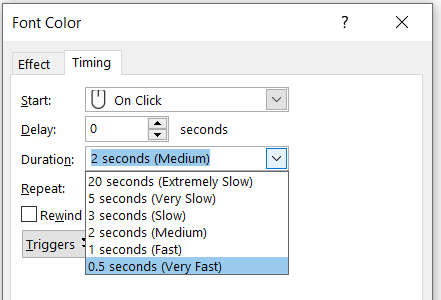
34. Set the Trigger to Start effect on click of hexagon; and click OK.
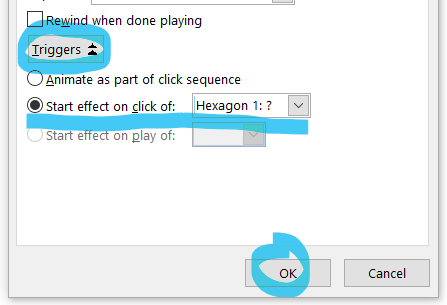
35. In the Animation pane set the text item to Start with Previous.
Creating the Blockbusters board.
1. Go to the Home tab and select the Hexagon.
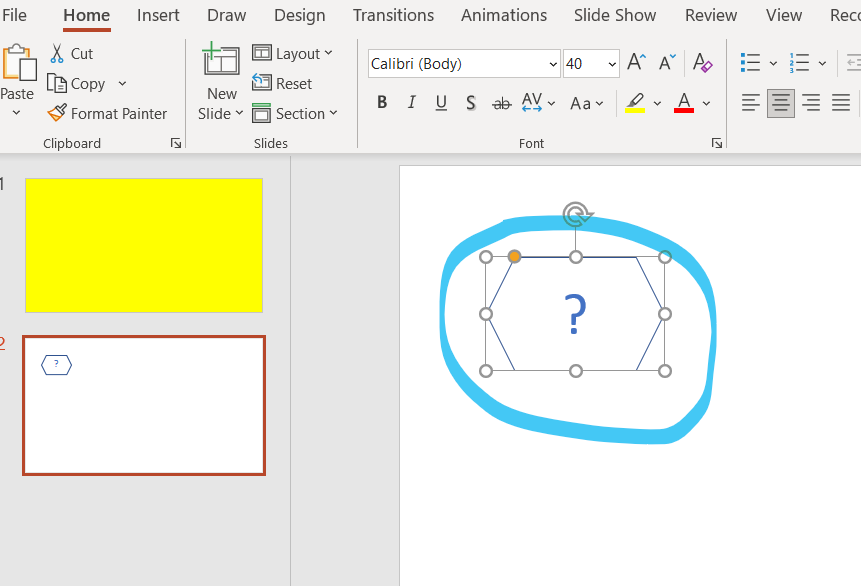
2. Copy and paste the hexagon on to the first yellow slide.
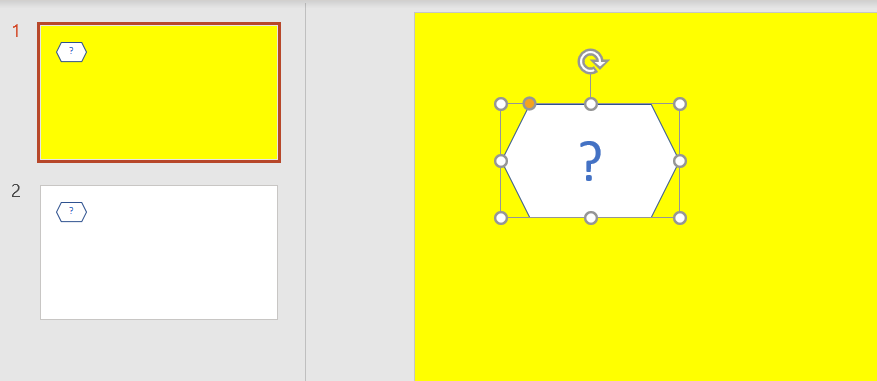
3. Copy and paste the hexagon; click and drag it into place below the first hexagon.
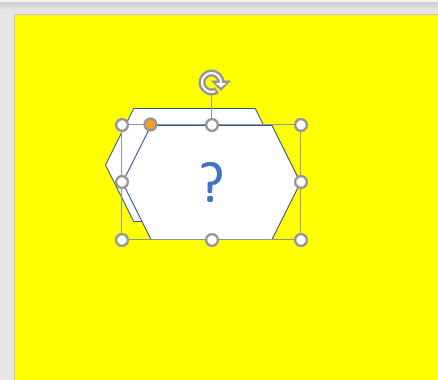
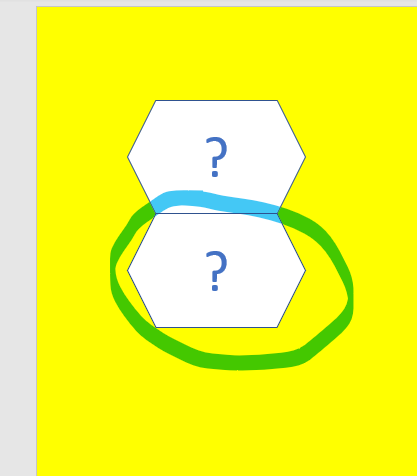
4. Repeat this process until you have a column with 5 (five) hexagons.
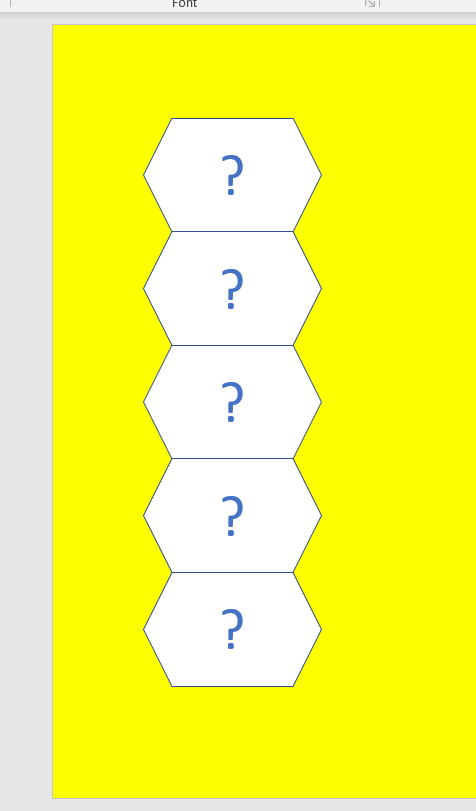
6. Copy and paste the column; then click and drag it next to the first column.
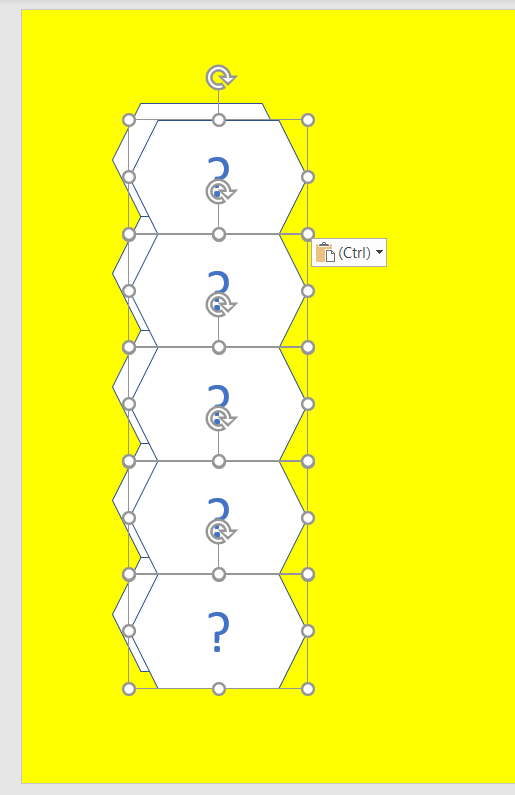
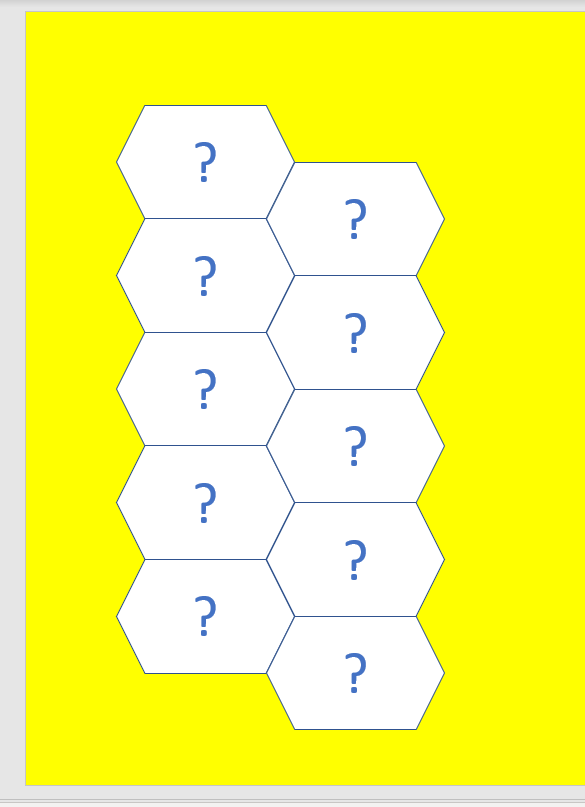
7. Repeat this process until you have 5 (five) columns.
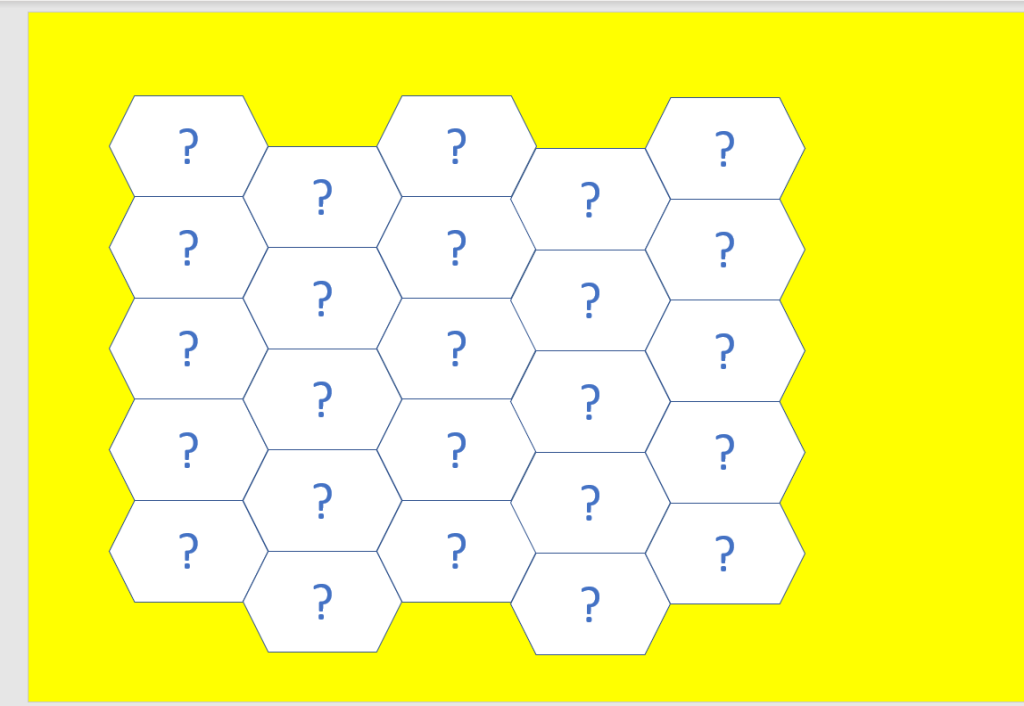
8. Select all of the hexagons and click/drag them into the centre/middle of the slide.
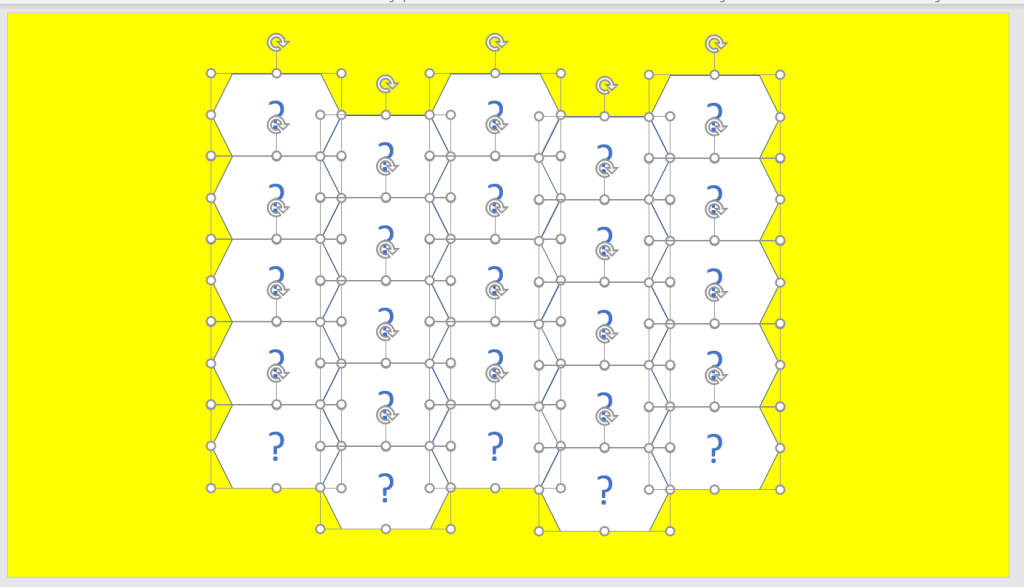
9. Insert a rectangle shape on the left side of the slide.
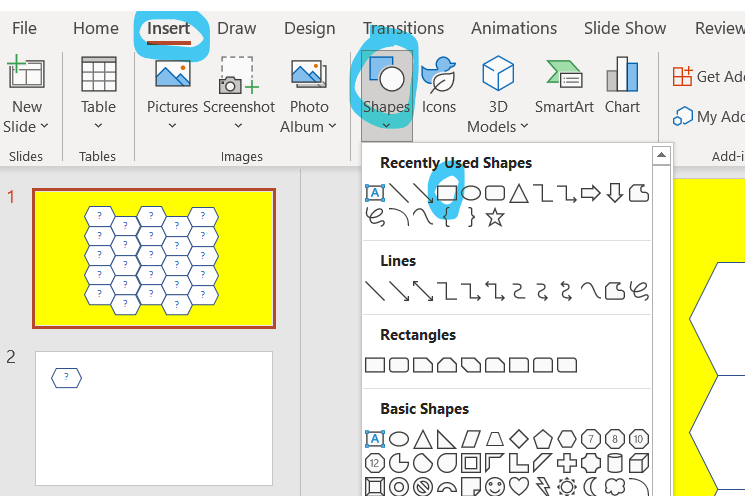
The rectangle must overlap the edge of the hexagons.
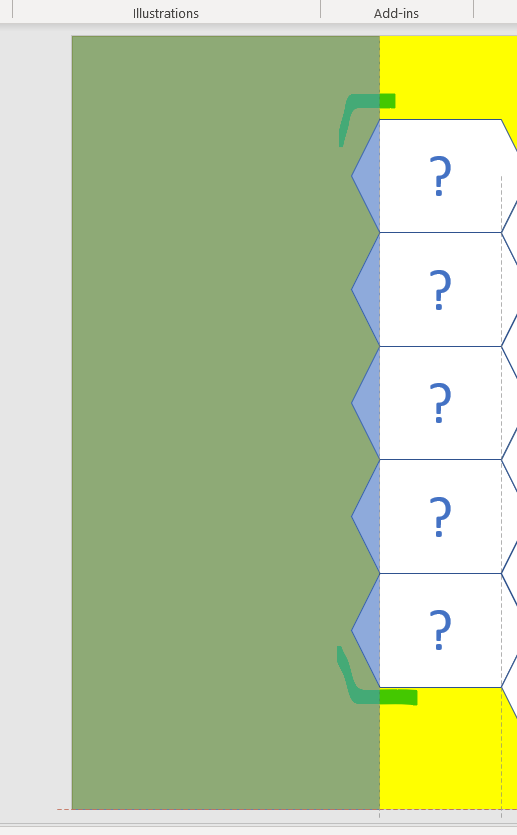
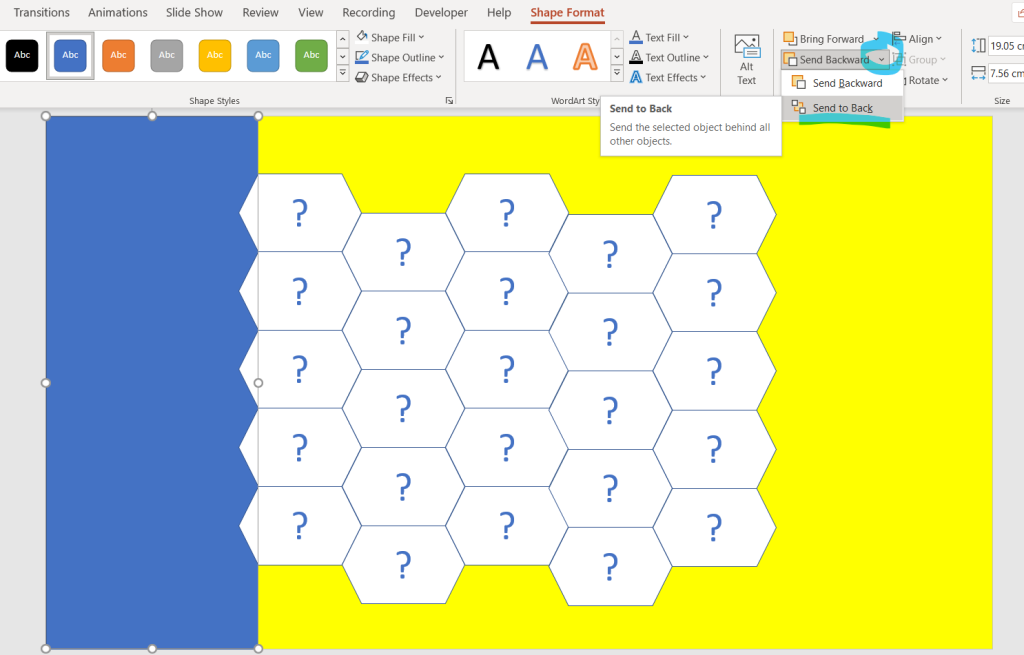
10. Send the rectangle to the back (behind the edge of the hexagons).
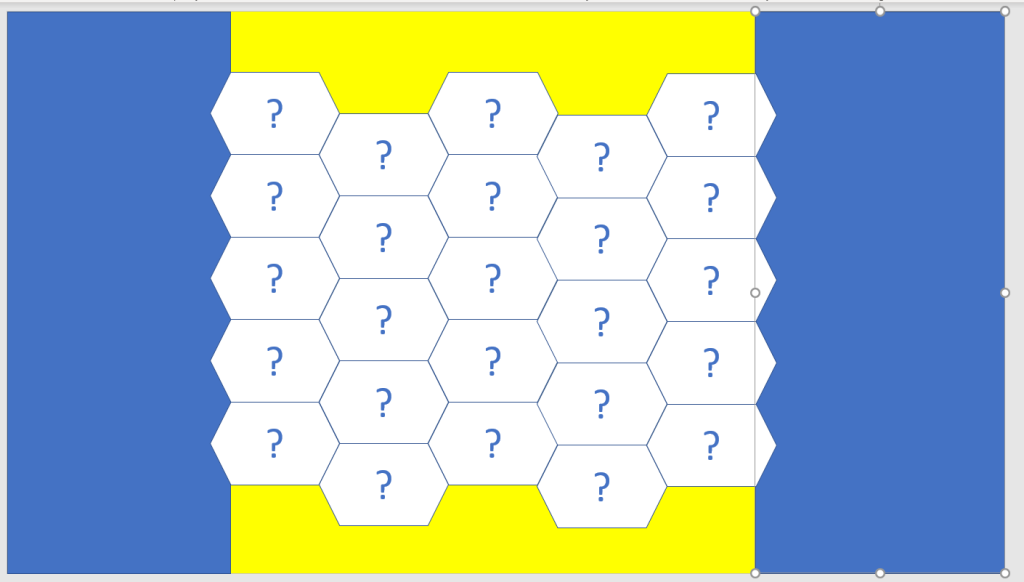
11. Repeat the process on the right side of the slide.
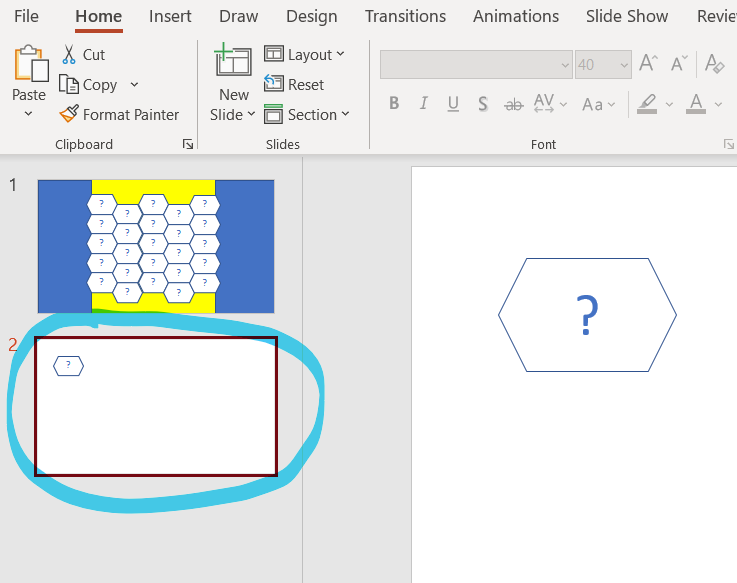
12. Delete the slide that you used to create the hexagon.
13. Save your PowerPoint.
Go into presenter mode and you should now have a working Blockbusters board.
To add in new letters to the board; simply highlight and overwrite the ‘?’ with your letters.